
This article serves as a guide for supplier and store users to log in and utilise the DotActiv TrueView Web platform. TrueView enables suppliers to manage users, assign stores, track planogram implementation, and monitor execution compliance across all allocated stores.
Logging Into TrueView Web
Navigate to the dedicated URL to access the DotActiv TrueView site using a preferred browser.
Supplier Users
Usernames and passwords are issued by the designated Supplier Admin. All users are advised to change their password upon first login. Platform access is role-based and restricted according to assigned permissions, allocated categories, and stores.
To update a password, click on the User Profile icon in the top right corner of the application and select View Profile. From there, navigate to the Account tab, where users can reset the password before saving the changes.
Store Users
Store login credentials follow the format:
StoreCode_StoreName (for example: 8_CANAL WALK).
If you experience login issues, please contact your dedicated Account Manager or Customer Success Consultant for assistance.
Supplier Admin User Experience on Web
The Supplier Admin role provides full operational and governance control within TrueView. This role combines execution oversight, user management, and strategic compliance visibility.
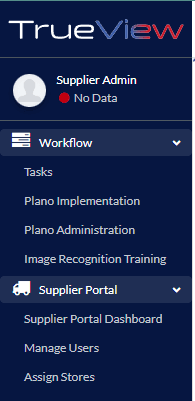
Once logged in, they have access to the Workflow and Supplier Portal modules, which consist of:
- Workflow
- Tasks
- Planogram Implementation
- Planogram Administration
- Image Recognition Training
- Supplier Portal
- Supplier Portal Dashboard
- Manage Users
- Assign Stores
Users can find the collapsible tabs in the navigation pane on the left-hand side of the TrueView application.
1. Workflow
a. Tasks
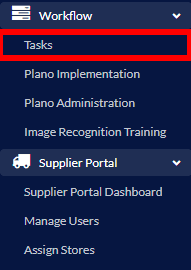
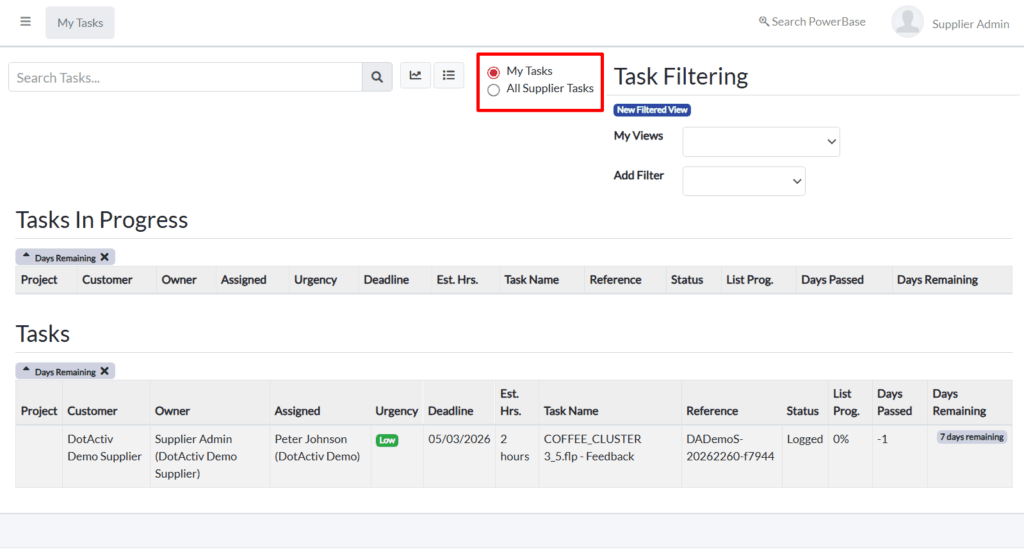
Supplier Admin users report any issues with planogram files, including file errors, images, product placements, or other discrepancies. Tasks are submitted through Plano Implementation or Plano Administration, and automatically assigned to the relevant Account Manager. Supplier users can comment and add supporting files, but can only view their own tasks. Supplier Admins have full visibility of all tasks logged by supplier users, enabling centralised oversight, clear accountability, and efficient issue resolution.
b. Plano Implementation
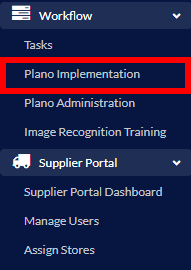
Plano Implementation allows Supplier Admins to review planograms per Store and Category.
From this view, they can:
- Filter by Store and Category
- View planogram status per Store and Category
- Download planogram reports in the following PDF file formats:
- Plano
- Stretch
- Product Fixture
- Plano And Shelf
- Plano, Shelf & Changes
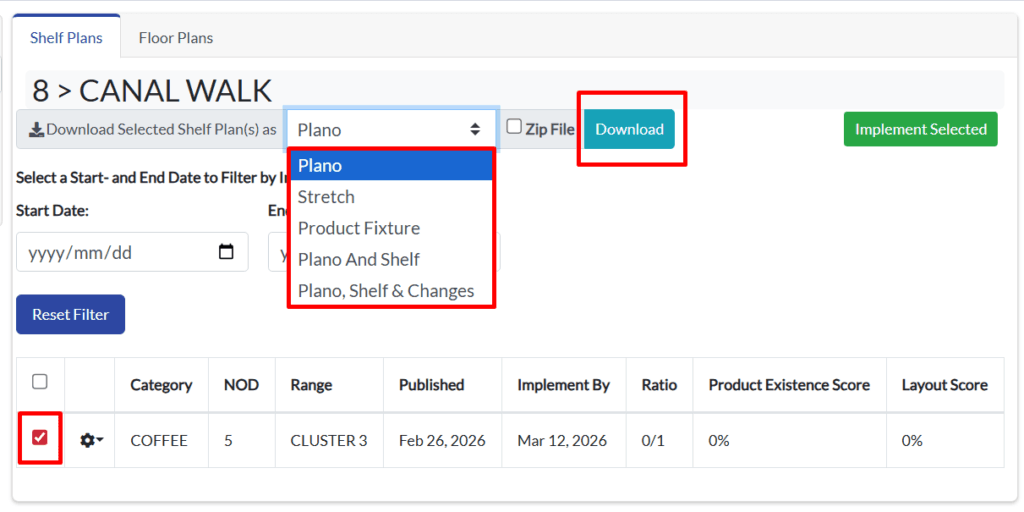
The following reports provide different views of the same planogram data, allowing users to review visual layouts and product placements depending on their operational needs:
Plano Report
The Plano Report displays the full planogram layout exactly as ranged. It shows product placement, shelf positioning, and facings, allowing users to visually understand how products should be arranged on the fixture.
Stretch Report
The Stretch Report presents all product information directly within the planogram layout. Each product block displays details such as description, barcode, brand, facings, and capacity, allowing users to view the full product data in context without referring to a grid.
Product Fixture Report
The Product Fixture Report provides a detailed view of the relationship between products and their assigned fixtures. It lists products alongside their barcode, brand, facings, and the shelf location where they are placed within the planogram.
Plano and Shelf Report
This report combines the full planogram layout with detailed shelf-level breakdowns, including shelf numbering and product positioning per shelf.
Plano, Shelf and Changes Report
This comprehensive report includes the planogram layout, shelf details, and highlights changes compared to the previous version. Changes may include new listings, delistings, repositioning, or facing adjustments.
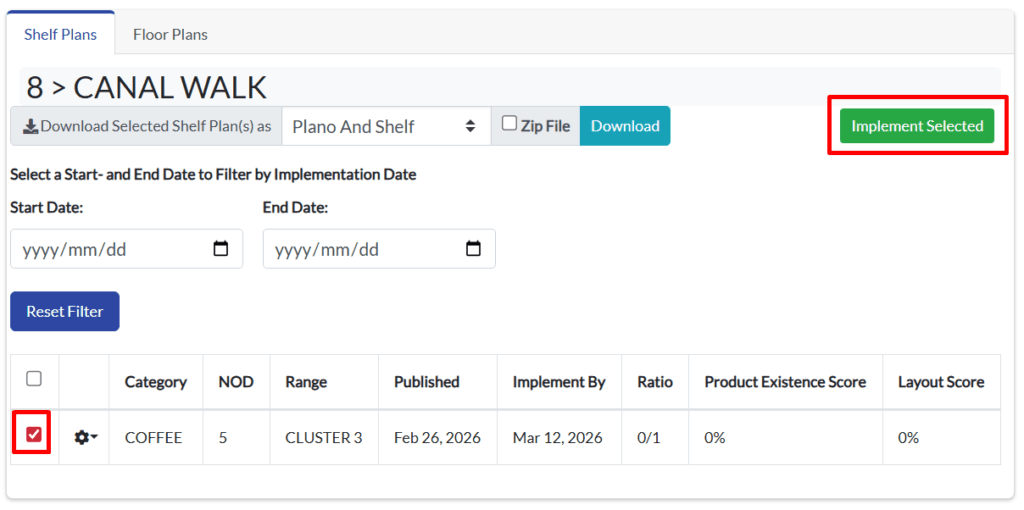
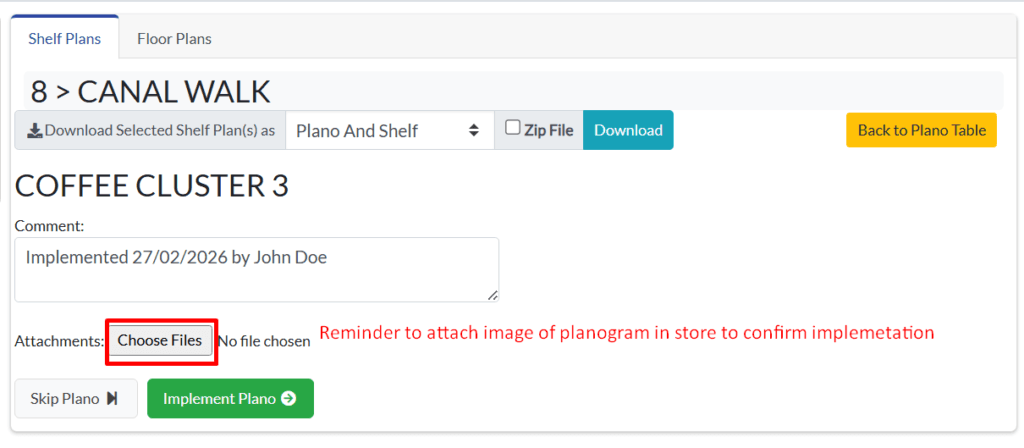
- Mark planograms as implemented, confirming that the planogram has been successfully executed in the selected store for the chosen Category, NOD, and Range.
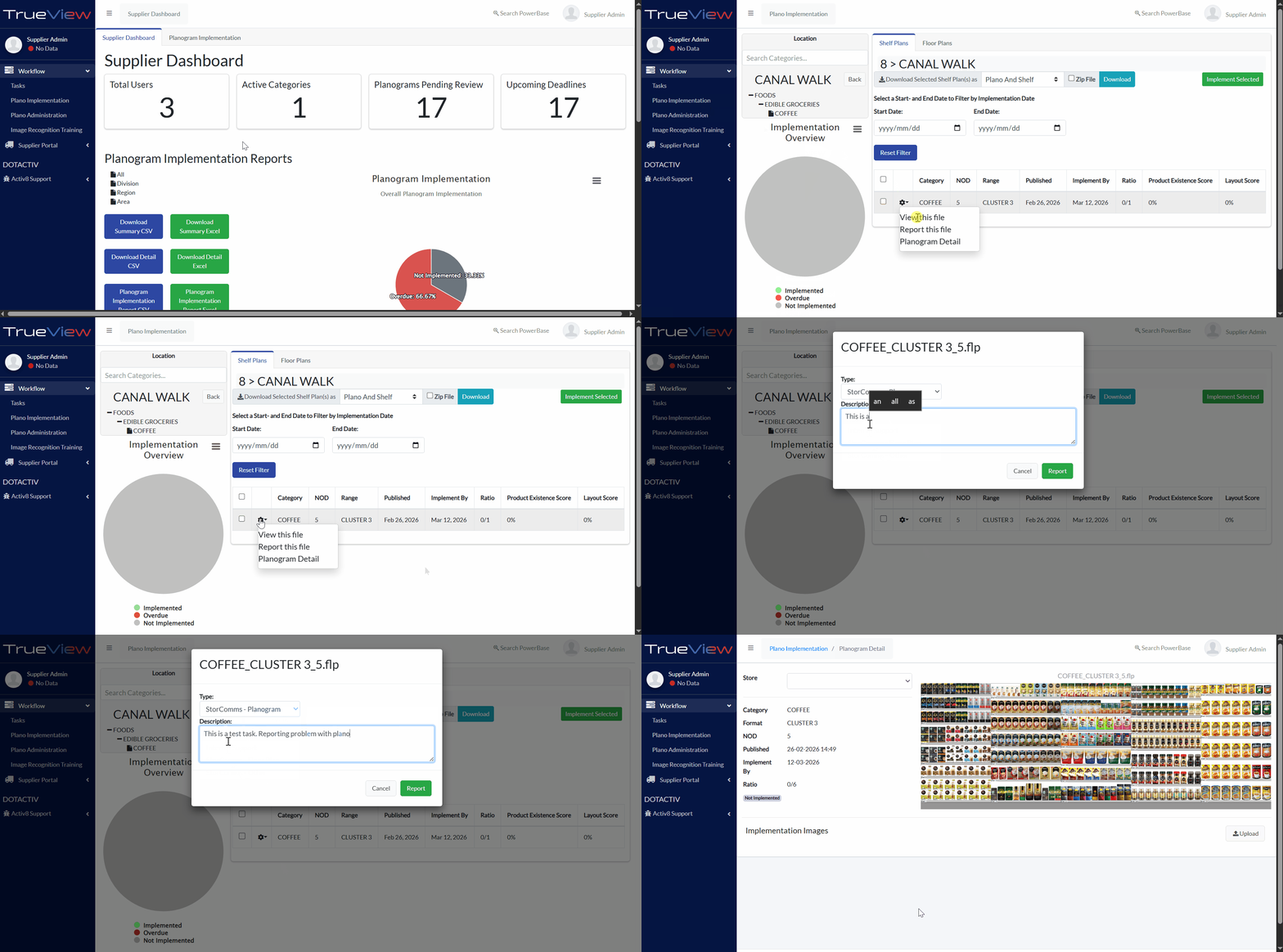
- View planogram, View planogram details and report planogram errors directly to the Account Manager for correction.
c. Plano Administration
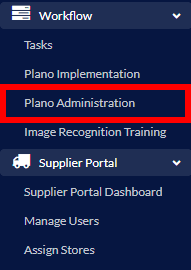
Plano Administration allows Supplier Admins to review planograms per Category:
From this view, they can:
- Filter by Category only
- View planogram status per Category
- Download planogram reports in the following PDF file formats:
- Plano
- Stretch
- Product Fixture
- Plano And Shelf
- Plano, Shelf & Changes
- Mark planograms as archived, confirming that the planogram is no longer applicable in the selected store for the chosen Category, NOD, and Range.
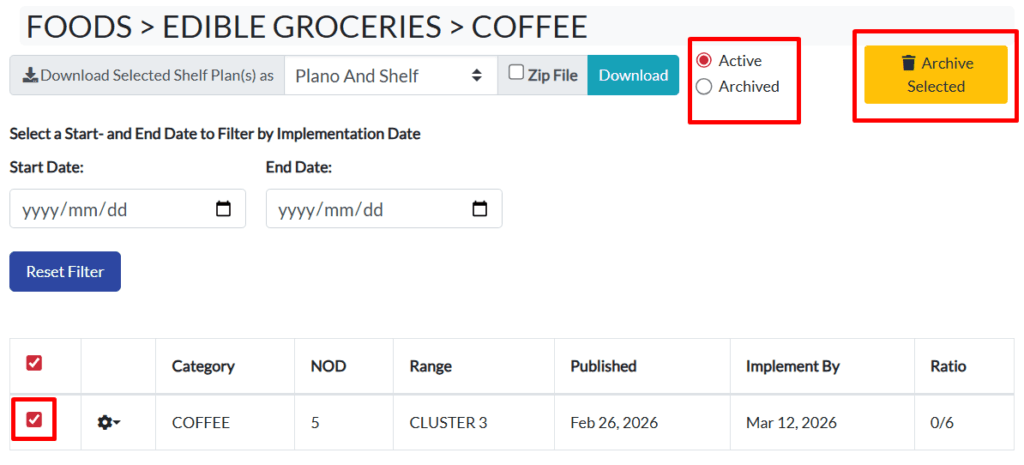
- View planogram, View planogram details and report planogram errors directly to the Account Manager for correction
Users cannot implement planograms from the Plano Administration screen. All other functionality mirrors the Planogram Implementation screen.
Refer to the full TrueView planogram implementation and administration guide for detailed workflows and screen walkthroughs:
TrueView Plano Implementation and Administration User Guide
d. Image Recognition Training
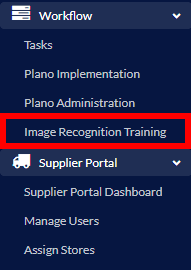
The Image Recognition Training module allows Supplier Admins to train the system to accurately identify products and planogram compliance from uploaded images. Supplier Admins can correct flagged images, provide annotated examples, and refine detection accuracy. This improves automated compliance verification, reduces manual checks, and supports faster, data-driven decision-making across all stores.
Toggle Product Overlay
This function allows users to turn the visual overlay on or off that highlights detected products on the planogram image. This helps users quickly verify which products the system has recognised and identify items that may require retraining.
Retrain
This function allows users to update the product detection model using corrected or validated images. This improves detection accuracy over time and helps ensure future scans identify products and compliance more reliably.
2. Supplier Portal
a. Supplier Portal Dashboard
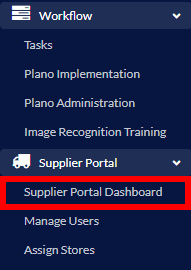
Supplier Dashboard Tab
The Supplier Dashboard tab provides an overview of supplier execution activity.
The dashboard displays:
- Total Users (Total of all Supplier Users)
- Active Categories (Total Categories assigned to Supplier Users)
- Planograms Pending Review (Total Not Yet Implemented and Overdue)
- Upcoming Deadlines (Total Not Yet Implemented)

Additionally, the dashboard provides Planogram Implementation Reports and charts reflecting Implemented, Not Yet Implemented, and Overdue planograms. The available reports include:
- Planogram Implementation Summary
Provides a high level overview of planogram implementation status by store. - Planogram Implementation Detail
Shows planogram implementation status per store and category, including days overdue. - Planogram Implementation Report
Displays detailed planogram implementation records including store, category, NOD, implementation date, comments, and execution images.
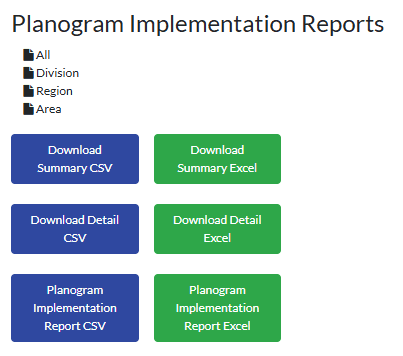
Supplier Admins can use the dashboard and downloadable reports to:
- Monitor execution compliance
- Identify overdue planograms
- Track performance by store and category
- Identify execution delays and trends
These reports and charts allow Supplier Admins to quickly identify execution progress and compliance gaps.
Planogram Implementation Tab
All functionality mirrors Plano Implementation within the Workflow module.
b. Manage Users
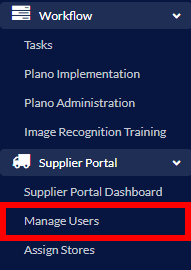
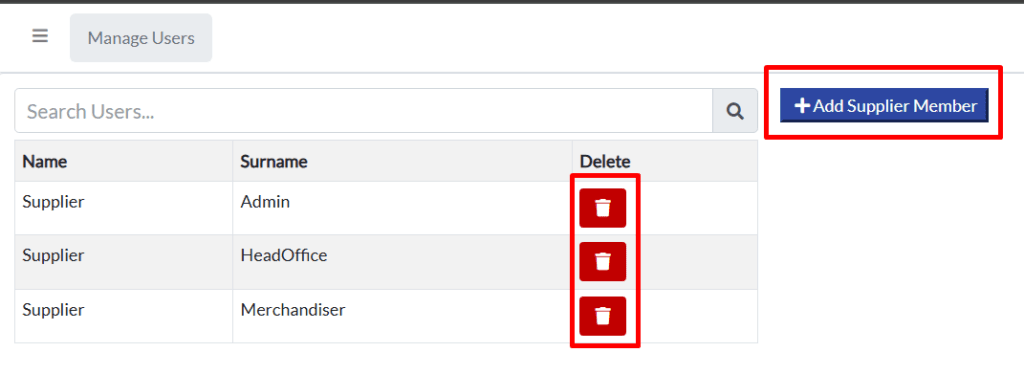
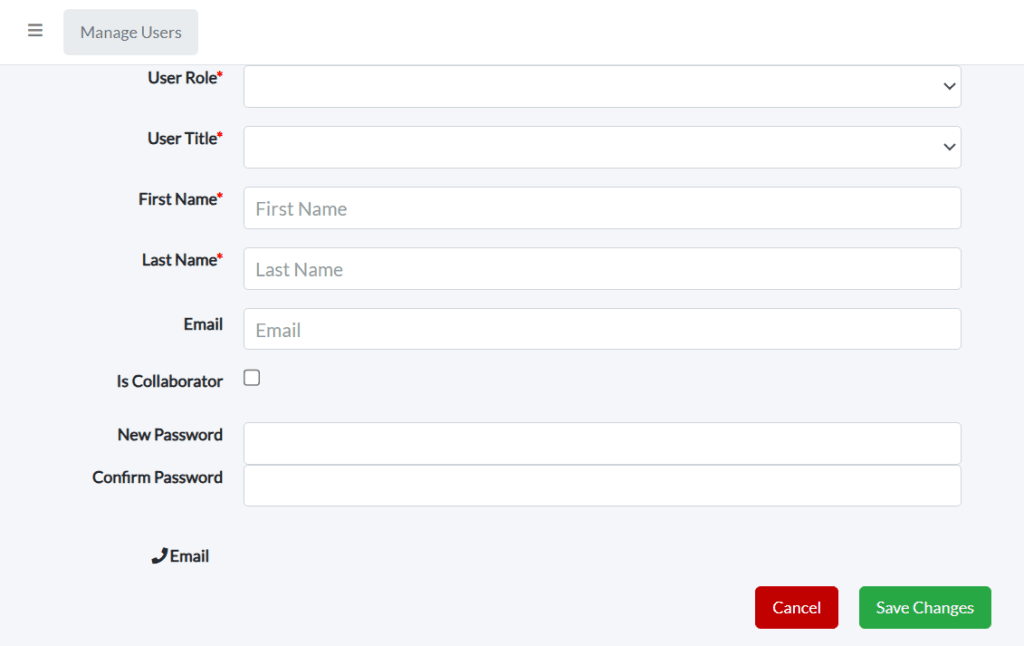
The Manage Users section allows Supplier Admins to:
- Add new users
- Edit existing users
- Delete users
- Control access to the TrueView platform
User Roles
The User Role determines what functionality a user can access within TrueView.
Supplier Admin
Has full access to the platform, including user management, store assignments, planogram implementation oversight, task management, and reporting.
Supplier Head Office / Regional User
Responsible for monitoring planogram implementation and compliance across stores and categories.
Supplier Merchandiser
Focused on store-level execution, including implementing planograms, uploading implementation images, and reporting planogram issues.
The ‘Is Collaborator’ checkbox designates a user as a collaborator within the system. When enabled, the user can contribute to workflows by adding comments, updates, and supporting information to tasks and planogram activities.
This ensures that only authorised users have access to supplier execution data.
c. Assign Stores
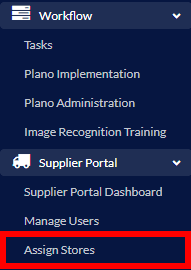
The Assign Stores section allows Supplier Admins to:
- Assign users to specific stores
- Unassign users from stores
Once assigned, users will only be able to view and manage planograms for the stores allocated to their profile.
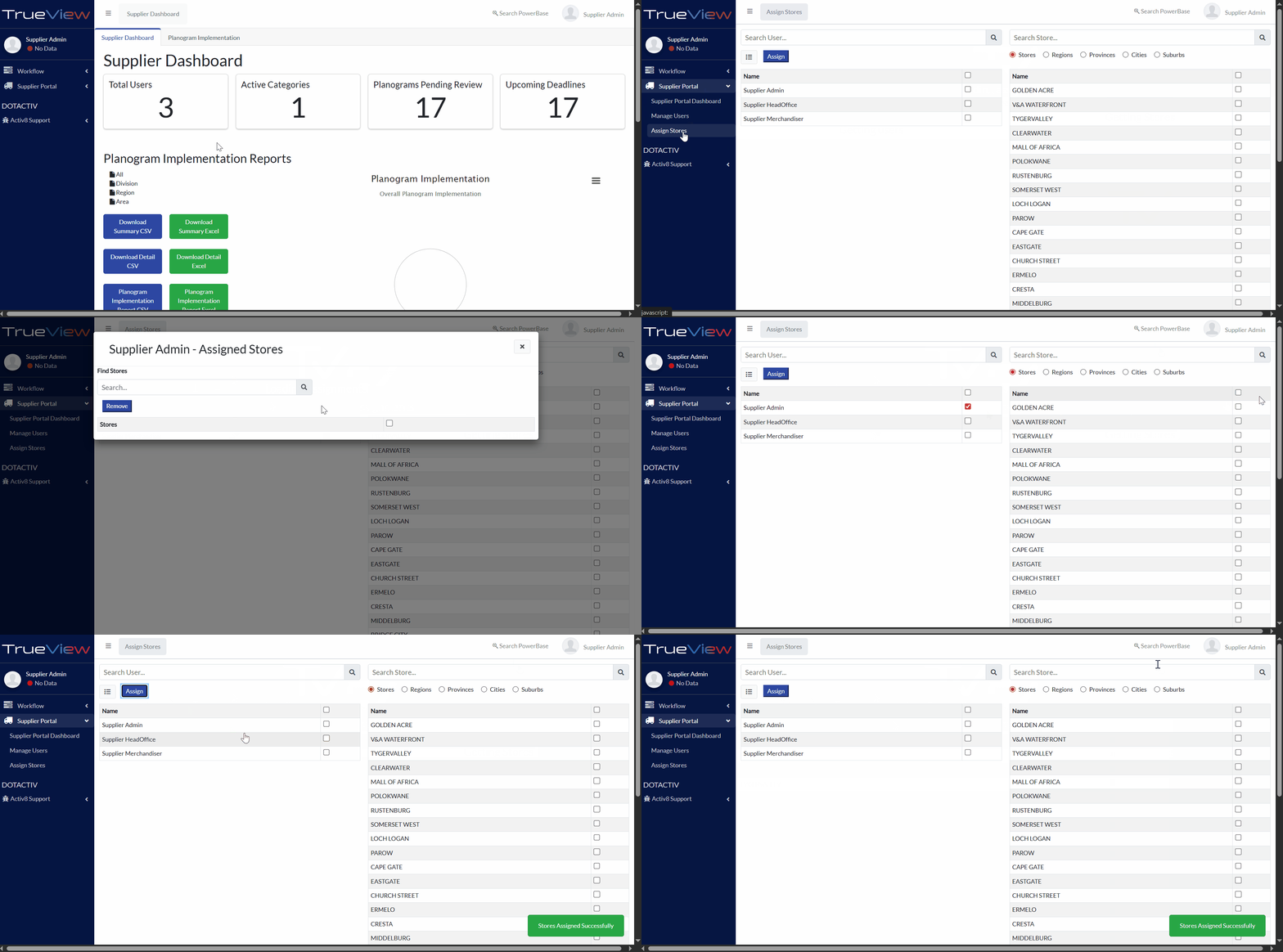
The Supplier Admin experience in TrueView provides a centralised command view of planogram execution and compliance. Supplier Admins can securely manage users, assign stores, monitor execution progress, and analyse performance trends through structured dashboards and reports. This enables rapid decision making, clear accountability, and controlled governance across all allocated stores.
Supplier Head Office / Regional User Experience on Web
The Supplier Head Office and Regional users provide strategic oversight and planogram governance without direct execution authority in stores. They have controlled access to monitor planogram implementation and review compliance across multiple stores.
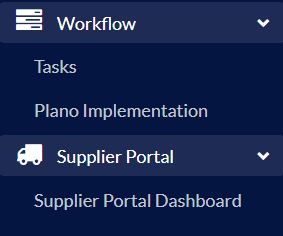
Once logged in, they have access to the Workflow and Supplier Portal modules, which consist of:
- Workflow
- Tasks
- Planogram Implementation
- Supplier Portal
- Supplier Portal Dashboard (Planogram Implementation tab only)
Users can find the collapsible tabs in the navigation pane on the left-hand side of the TrueView application.
1. Workflow
Tasks
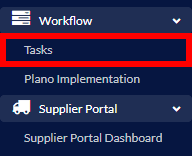
Supplier Head Office and Regional users can report any issues with planogram files, including file errors, images, product placements, or other discrepancies. Tasks are submitted through Plano Implementation, and automatically assigned to the relevant Account Manager. Supplier Head Office and Regional users can comment and add supporting files for tasks logged by themselves. They cannot view or manage tasks submitted by other supplier users.
Plano Implementation
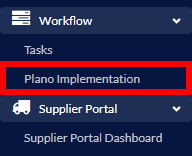
Plano Implementation allows Supplier Head Office and Regional users to review planograms per Store and Category.
From this view, they can:
- Filter by Store and Category
- View planogram status per Store and Category
- Download planogram reports in the following PDF file formats:
- Plano
- Stretch
- Product Fixture
- Plano And Shelf
- Plano, Shelf & Changes
- Mark planograms as implemented, confirming that the planogram has been successfully executed in the selected store for the chosen Category, NOD, and Range.
- View planogram, View planogram details and report planogram errors directly to the Account Manager for correction.
2. Supplier Portal
Supplier Portal Dashboard
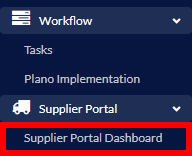
Planogram Implementation Tab
All functionality mirrors Plano Implementation within the Workflow module.
The Supplier Head Office and Regional user experience in TrueView delivers a focused execution environment with clear store and planogram visibility. They can track assigned planograms, update execution status, and report issues, supporting efficient daily execution, fast feedback loops, and accurate compliance reporting.
Supplier Merchandiser User Experience on Web
Supplier Merchandiser users provide focused in-store execution support and planogram management within TrueView. They have controlled access to monitor and update planogram implementation, review compliance, and report issues across their assigned stores.
Once logged in, they have access to the Workflow and Supplier Portal modules, which consist of:
- Workflow
- Tasks
- Supplier Portal
- Supplier Portal Dashboard (Planogram Implementation tab only)
Users can find the collapsible tabs in the navigation pane on the left-hand side of the TrueView application.
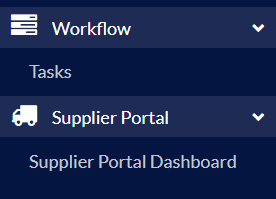
1. Workflow
Tasks
Supplier Merchandiser users can report any issues with planogram files, including file errors, images, product placements, or other discrepancies. Tasks are submitted through Plano Implementation, and automatically assigned to the relevant Account Manager. Supplier Merchandiser users can comment and add supporting files for tasks logged by themselves. They cannot view or manage tasks submitted by other supplier users.
2. Supplier Portal
Supplier Portal Dashboard
Planogram Implementation Tab
Plano Implementation allows Supplier Merchandiser users to review planograms per Store and Category.
From this view, they can:
- Filter by Store and Category
- View planogram status per Store and Category
- Download planogram reports in the following PDF file formats:
- Plano
- Stretch
- Product Fixture
- Plano And Shelf
- Plano, Shelf & Changes
- Mark planograms as implemented, confirming that the planogram has been successfully executed in the selected store for the chosen Category, NOD, and Range.
- View planogram, View planogram details and report planogram errors directly to the Account Manager for correction.
The Supplier Merchandiser experience in TrueView delivers a focused execution environment with clear store and planogram visibility. Merchandisers can track assigned planograms, update execution status, and report issues. This supports efficient daily execution, fast feedback loops, and accurate compliance reporting.
Store User Experience on Web
Store users provide in-store execution support with a focus on compliance and planogram verification. They have controlled access to monitor, confirm, and submit execution data for planograms within the store.
Once logged in, they have access to the Store Compliance and Workflow modules, which consist of:
- Store Compliance
- Image Recognition
- Workflow
- Plano Implementation
Users can find the collapsible tabs in the navigation pane on the left-hand side of the TrueView application.
1. Store Compliance
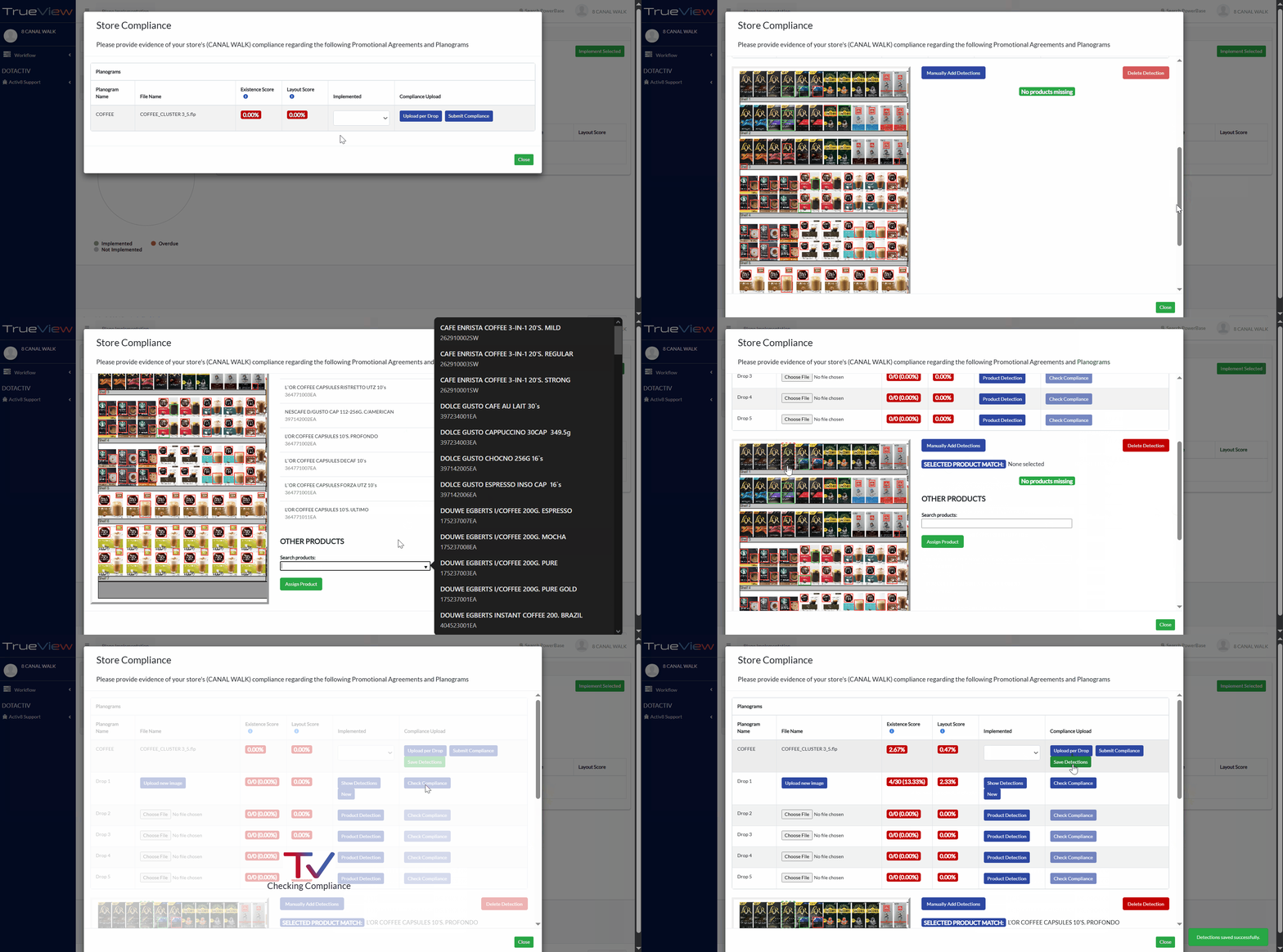
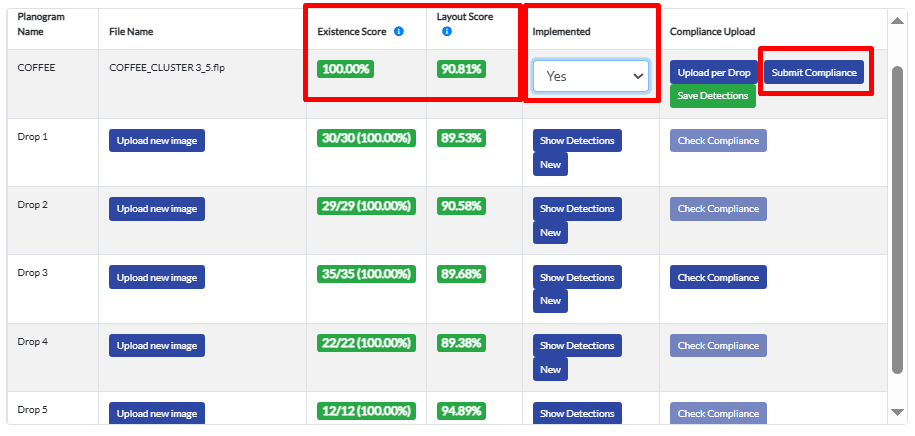
Upon successful login, Store Users are presented with a Store Compliance pop-up, which allows them to:
- Upload product images per planogram per drop
- Save product image detections per planogram per drop
- Green box indicates a product match has been found
- Red box indicates manual intervention is required to correct matched product
- No box indicates no product match has been found
- Add manual detections and assign products where required for products with no match
- Delete detections where required to adjust box layout or product coverage
- Review compliance results per planogram drop and for the full planogram once all images have been uploaded
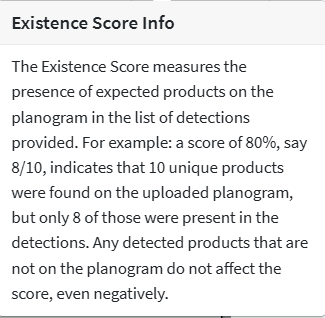
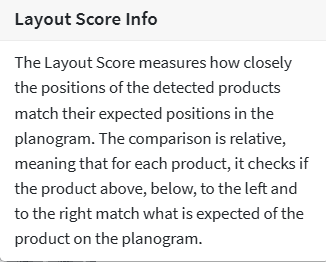
Before submitting compliance, all products should display green boxes with correct product matches. The objective of the Store Compliance process is to ensure that every product on the planogram is accurately detected and validated. All boxes must be reviewed and validated before submission to allow Image Recognition Training to occur successfully.
Once validation is complete, Store users can:
- Indicate whether planograms have been implemented in store
- Submit Compliance
The Store Compliance module ensures structured validation, accurate product matching, and auditable proof of execution. Compliance should only be submitted once all discrepancies have been resolved and the planogram reflects full and correct product alignment.
2. Workflow
Planogram Implementation
Store Users access the Planogram Implementation screen through the Workflow menu.
From this view, they can:
- Filter by Store and Category
- View planogram status per Store and Category
- Download planogram reports in the following PDF file formats:
- Plano
- Stretch
- Product Fixture
- Plano And Shelf
- Plano, Shelf & Changes
- Mark planograms as implemented, confirming that the planogram has been successfully executed in the selected store for the chosen Category, NOD, and Range.
- View planogram, View planogram details and report planogram errors directly to the Account Manager for correction.
The Store user experience in TrueView provides a simple and structured compliance workflow. Users can confirm planogram implementation, upload supporting images, and monitor compliance status, ensuring auditable proof of execution, improved accountability, and alignment between store operations and supplier expectations.
If you experience any difficulties with the steps outlined above, please contact DotActiv Support at criticalsupport@dotactiv.com or log a support ticket using the Support function, Log a Bug/Feature. Our support team will investigate the issue and assist you in ensuring uninterrupted access to TrueView Web.