
The Planogram Approval feature was designed to streamline the approval process for planograms. It allows users to submit planogram files through the software to relevant stakeholders for review, feedback, and sign-off.
This article explains how to provide feedback and manage the full approval process as a supplier or buyer.
Logging Into DotActiv Viewer
To get started, you will receive an email similar to the example below, containing your DotActiv Viewer login information.

If you have not yet done so, download the DotActiv application by clicking on the link provided in the email above. Once downloaded, you will need to enter a license key. This will be provided by the relevant DotActiv contact person.
Next, you will be presented with the DotActiv software login window. Use the login details provided in the email to log in to the software successfully.

Please make sure of the following:
- Configuration: Default
- TrueView extension: pnp.com
- Username: Your name and the first letter of your surname (i.e. DanineV)
- Password: syncuser1234
Once you have entered the information, you can click on ‘Log In’.
Approval Notifications
The software is designed to notify each user of any approvals that require their attention. These notifications appear in the “Action Center” on the left-hand side of the home page. As seen below.

Notifications are specific to each user, meaning that only the person responsible for an approval will receive the prompt. If a file is awaiting approval for a specific user, only that user will be notified.
It is essential to note that when logged in with an administrative account, individual notifications will not be visible. You must log out and log in with the user account that was created during the setup process in order to view the tasks assigned to that user.
If the Action Centre does not appear on the home screen, you can still view pending approvals by going to the “Space Planning” tab in the software and selecting “View Approvals” within the “Collaboration” section. A new tab will open displaying a table with all the details of the uploaded file. Within this table, you will find the “Action Required By” field, which indicates who is currently responsible for the next step in the process. If this field is blank, it means that either the approval deadline has expired or all approvals have already been completed.

From this screen, you can also download or view uploaded planograms, cancel files if necessary, or send follow-up reminders (only for users with Approval Admin permissions). When you send a follow-up, the system generates an automated email to the approver, reminding them of their pending task. This email is sent to the address linked to their user account.
Adding Comments
When a planogram file has been uploaded for your review, you have the option of providing feedback by adding comments directly to the file. To do this, you must first download and open the file from either the Action Centre or the View Approvals section.
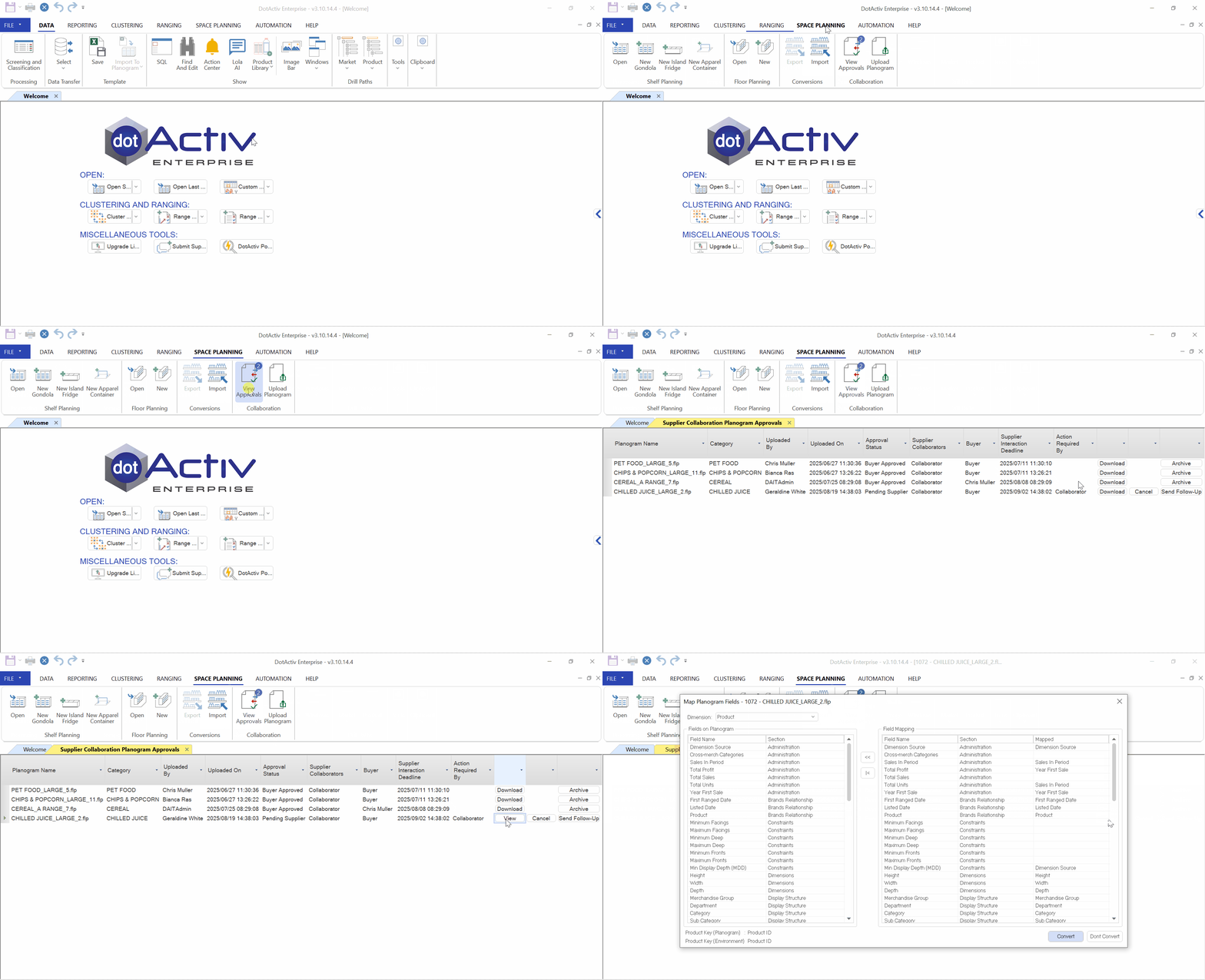
Ensure that you convert the planograms built with different configurations.
Once the file is open, you can add comments directly to specific sections. By hovering over an element in the file, a comment icon will appear. Clicking this icon allows you to type feedback related to that section. Selecting this option opens a window where you can type your feedback and, if necessary, attach supporting files to provide more detailed instructions. The comment will then be linked to the item you selected, making your feedback precise and easy to interpret.
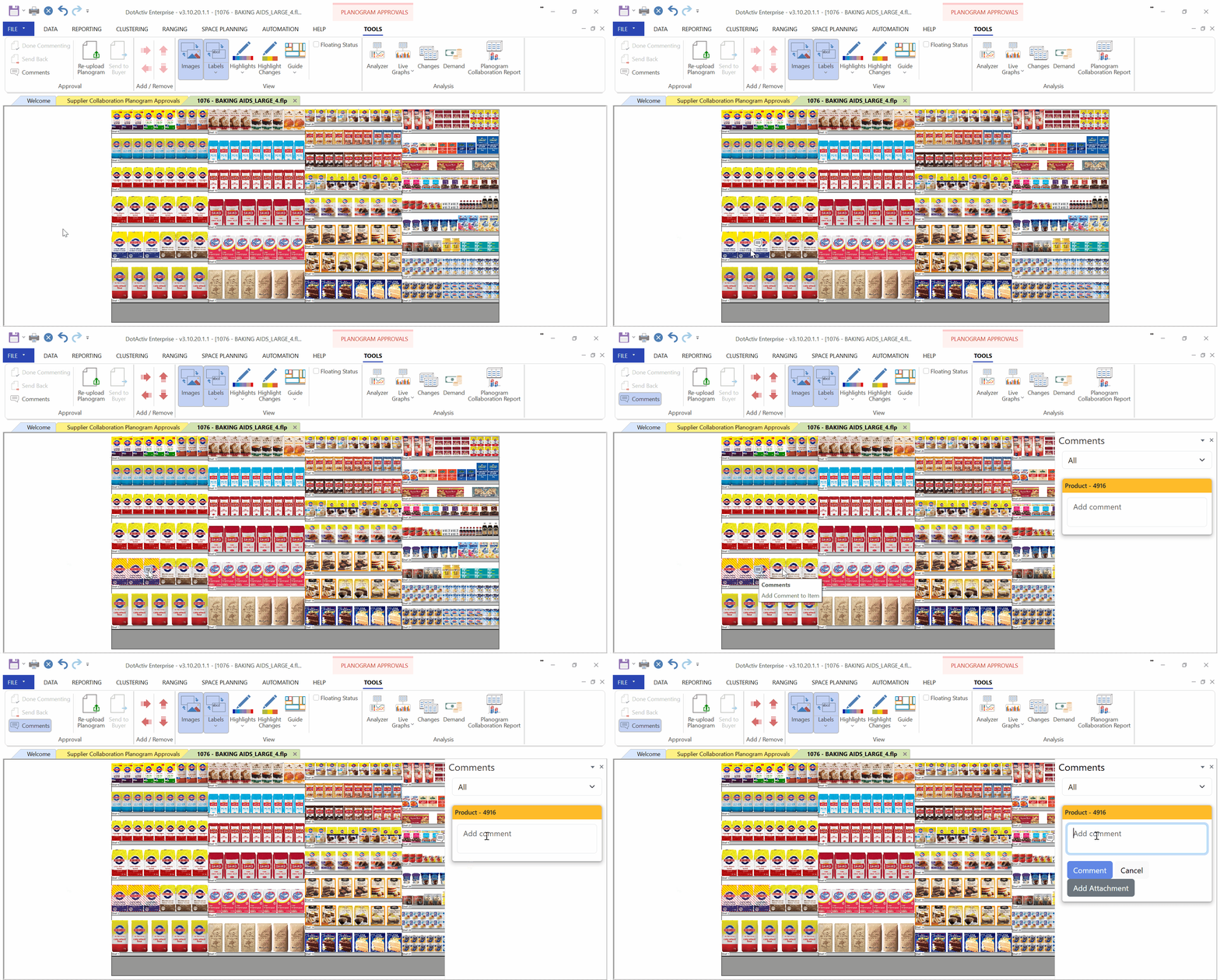
If you would like to review all the comments made on a planogram, you can go to the “Tools” tab and select “Comments” within the “Approval” section. This will open a comments panel on the right-hand side of the screen, displaying all comments associated with the file.

Once you have finished adding comments, you can either approve the file if it meets all requirements or send it back to the uploader with your feedback for corrections.
Approving A File
If you are satisfied with a planogram and no changes are required, you can proceed with approving it. To do this, open the file, navigate to the “Tools” tab, and navigate to the “Approval” section. Depending on your role, you may see different options. If you are a Buyer, you will use the “Approve” option to provide final approval. If you are a Collaborator, you may select “Done Commenting” to confirm that your review is complete and send the file back to the uploader for corrections. If you are the uploader, you may select “Send to Buyer” to forward the file for final approval. Once your selection is made, the system records the action and automatically routes the file to the next user in the process.
Collaborator/ Supplier Approval

Buyer Approval

Analysing The Planogram Collaboration Report
The Planogram Collaboration Report offers the user an overview of the data and analytics associated with a specific planogram. The report is only available once a specific planogram is open within the software and will only provide an overview of the data associated with that specific planogram.

Sending A File Back
If the planogram requires changes before it can be approved, you must use the “Send Back” function. This ensures that the uploader receives your feedback and has the opportunity to make the required adjustments.
To do this, go to the “Tools” tab and select “Send Back within the “Approval” section. The system will prompt you to provide a reason for sending the file back and to enter comments explaining what needs to be corrected. Once submitted, the file is returned to the uploader along with your feedback. The uploader can then apply the requested changes and re-upload the file for approval. Please note that the “Send Back” option is available only to Buyer users.

By following these steps, you will be able to view uploaded planograms, analyse the Planogram Collaboration Report, and provide feedback on planograms within the software. The Planogram Approval feature simplifies the collaboration process, improves accountability, and ensures that every planogram is reviewed and approved in a structured and professional manner.
If you experience difficulties with any of the steps outlined above, please reach out to DotActiv Support. Our support team will investigate the issue further and assist you in ensuring uninterrupted access to the planogram approval process.